
Your log stays on your device.
Your compounds, doses, and vials never leave your device. Apple and RevenueCat process an anonymous app identifier, purchase history, and basic app/device metadata to provide and restore Pro.
- No account
- No Kovus server for your log
- No analytics

Where each thing lives.
On your iPhone or iPad
Stored in the app's database on the device. Each device keeps its own log, and nothing syncs between them.
- Compound names and labels
- Vial amounts, units, balances, expiry dates and costs
- Logged amounts
- Schedules and reminders
- Injection-site history
- Notes and local weight entries
- App settings and export history
Apple and RevenueCat
Only to provide, manage and restore Pro. Kovus never receives your full payment-card details.
- An anonymous app identifier
- Purchase history and entitlement status
- Basic app and device metadata
Not in the app at all
- Analytics SDK
- Advertising SDK
- Session replay
- Remote crash reporting
What your Lock Screen shows.
Reminders are scheduled on the device, and by default they never name what you track. Flip the switch to see the difference.

Dose scheduled today
Open your log to confirm the entry.
Private text is on by default, and stays on while Face ID lock is on. With it off, the reminder names your label: "Morning vial dose scheduled today".
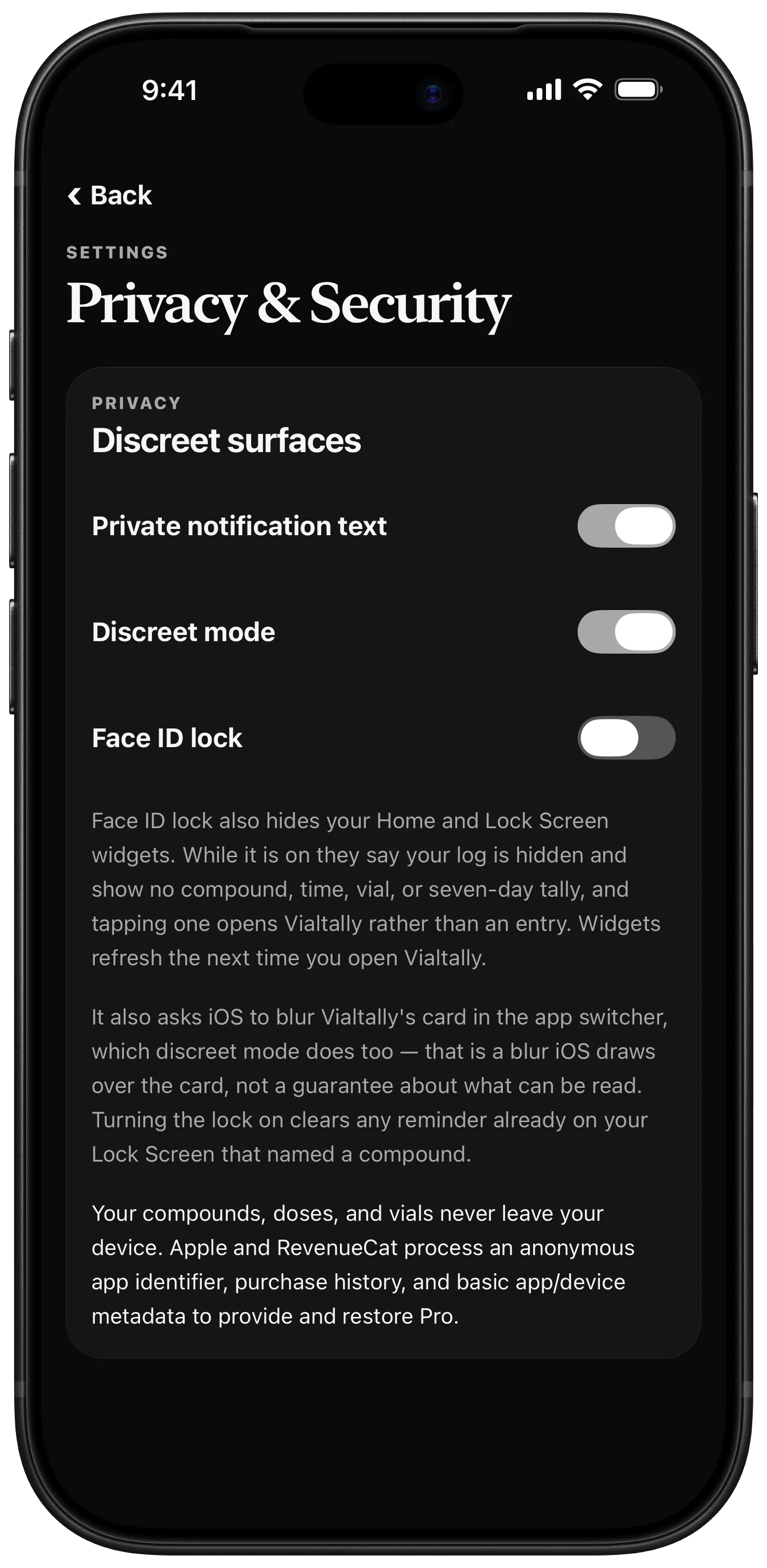
Three switches, in Settings.
- Private notification text
- On by default. Reminders read "Dose scheduled today" rather than naming your label, and stay that way while Face ID lock is on.
- Discreet mode
- Asks iOS to blur Vialtally's card in the app switcher. That is a blur iOS draws over the card, not a guarantee about what can be read.
- Face ID lock
- Locks the app and hides your Home and Lock Screen widgets: they say your log is hidden and show no compound, time, vial or seven-day tally. Turning it on clears any reminder already on your Lock Screen that named a compound.

Moving to a new device.
In Vialtally Settings, Export local data saves a copy wherever you choose. Import it on the other device.
Import shows a preview first, and saves a safety snapshot of what you have now before it replaces anything.
An iPhone or iPad backup can restore the local database during device setup, but it does not keep Vialtally in sync between devices.
The full policy.
Every detail, including purchase-data retention and how to ask for deletion, is in the privacy policy.